Documentation
How Paredra works, on every device.
One memory, five doors into it. This walkthrough shows each app doing its actual job. Every screen below is a real product screenshot, not a mockup.
Paredra Sync for Mac
Where meetings are captured.
The Mac app lives in your menu bar and records meetings straight from the apps themselves. No bot joins the call, and it can capture two meetings at once. Transcription happens on your Mac; the audio never leaves it. Every screen below is shown in both appearances, because the app follows yours.
-
Open the deck from your menu bar.
Paredra Sync sits quietly beside your clock. Click it and the deck shows every app currently playing audio, plus your microphone for in-person meetings. Each one is a single click from being captured.
Light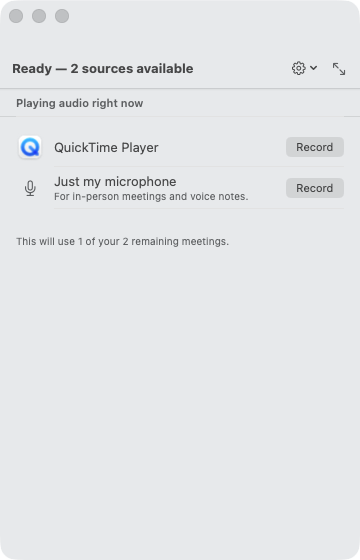 Dark
Dark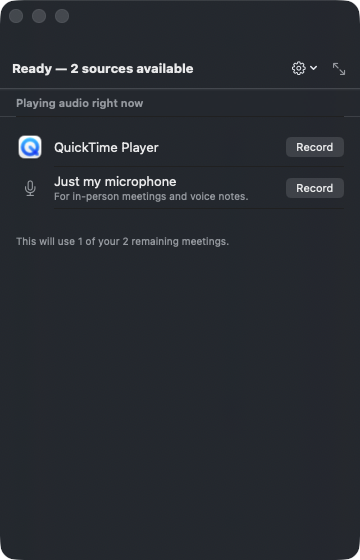
The deck, idle: apps playing audio right now, ready to record. -
Record two meetings at the same time.
Double-booked at 2pm? Record the Zoom and the Teams call simultaneously. Each gets its own live transcript, and the second chair reads the room as people speak, surfacing what your knowledge already knows about the topic on the table.
Light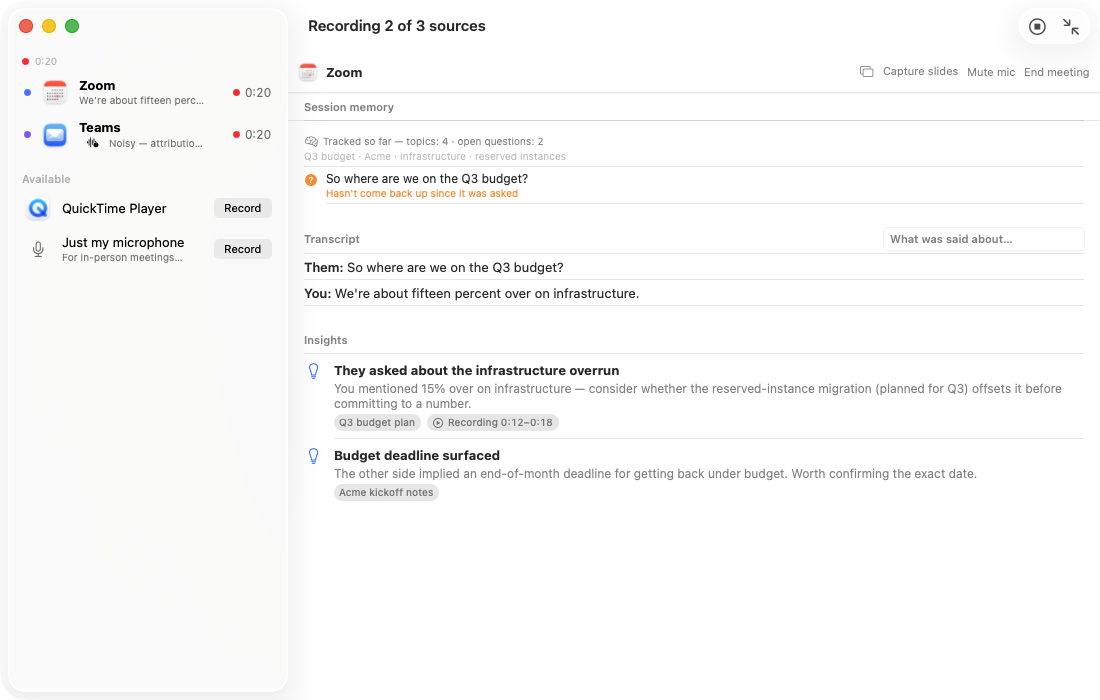 Dark
Dark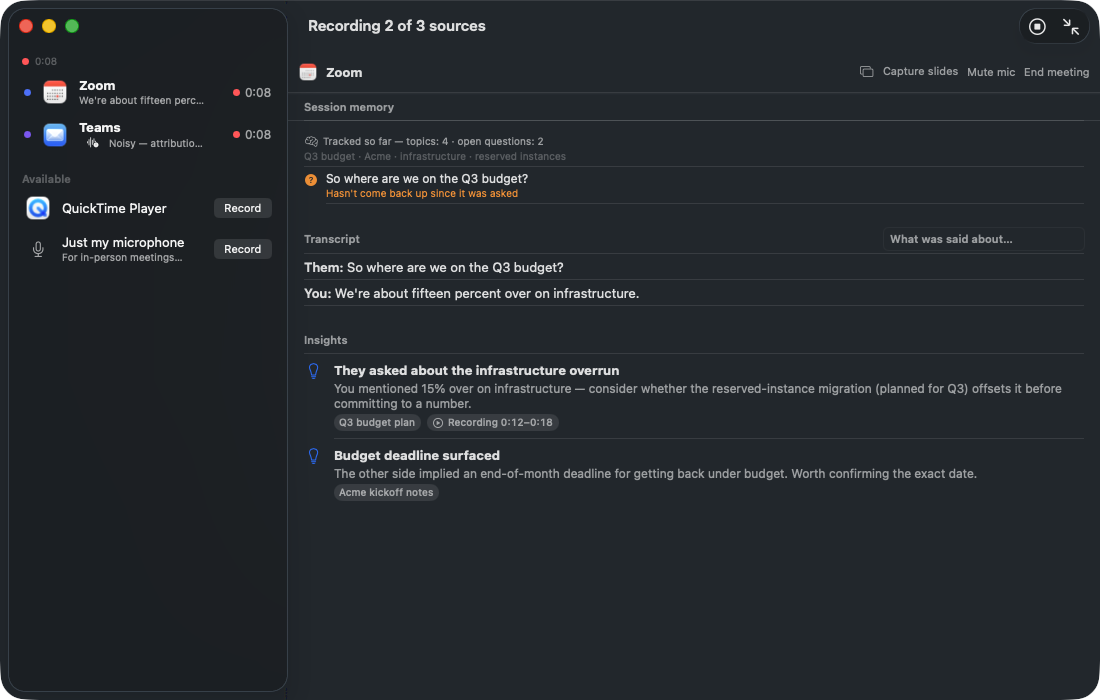
Two sources recording at once. Live transcript on the right, insights as they happen. -
End the meeting, get the notes.
When a call ends, the deck offers the notes: TL;DR, action items, and topics, filed to the right project. Accept them and they join your knowledge; discard and nothing is kept.
Light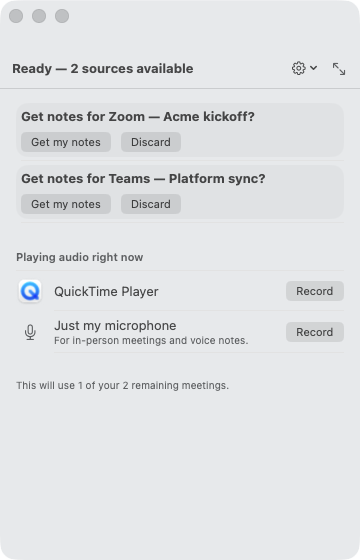 Dark
Dark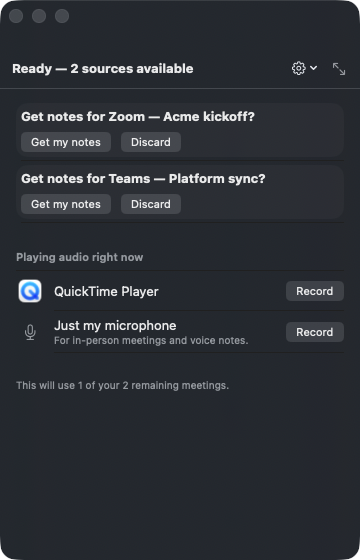
Your notes, offered. Never taken without asking. -
Sync your vault, keep your files.
Everything Paredra writes can land in a folder you own: plain Markdown, readable by any app, including an Obsidian vault. The intelligence runs on top of files that stay yours.
Light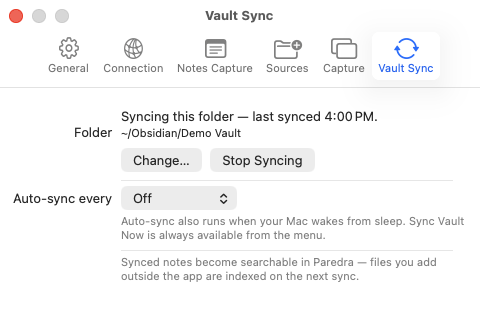 Dark
Dark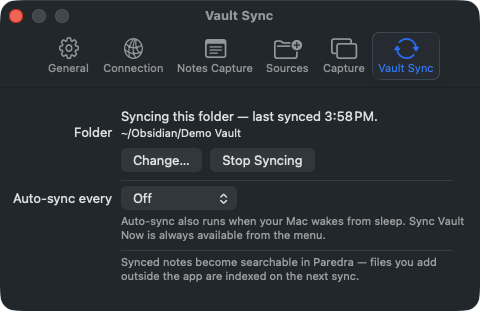
Vault sync: your record, as plain Markdown, in your folder.
Paredra for iPhone
Your memory, in your pocket.
The iPhone app is where you capture on the go and ask on the go. Meetings, quick notes, photos, and a conversation with everything you know. Each screen is shown light and dark, exactly as the app renders them.
-
Capture a thought before it escapes.
Type a quick note anywhere and hit Save. Paredra files it into the same memory your meetings feed, and the graph picks it up from there.
Light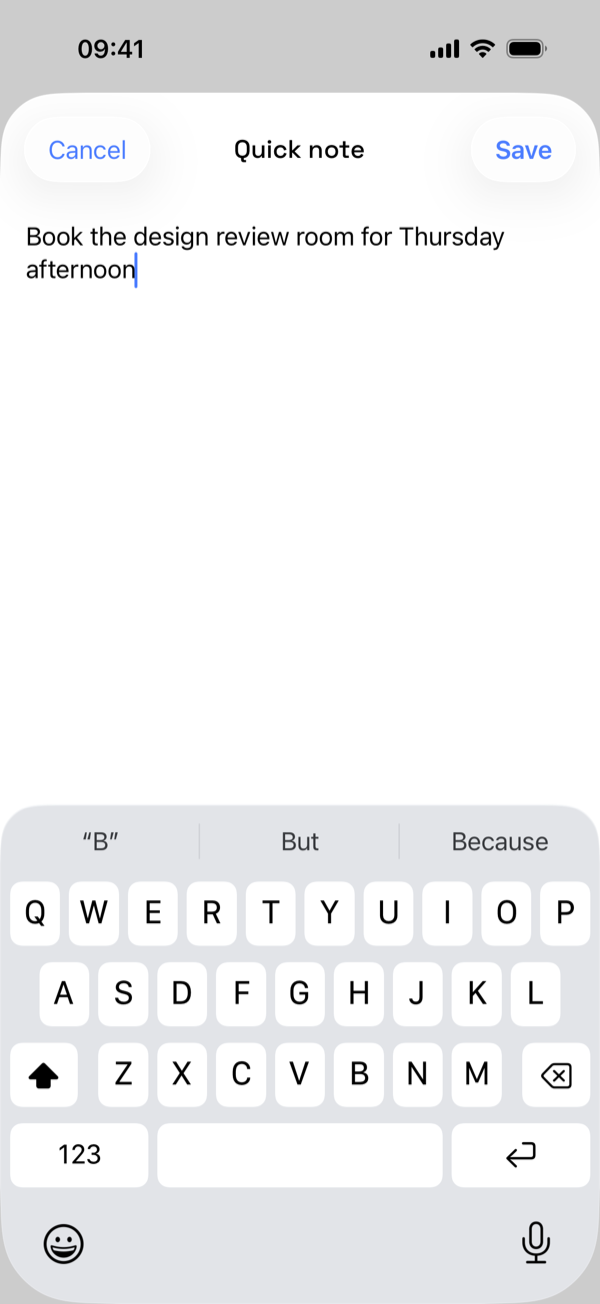 Dark
Dark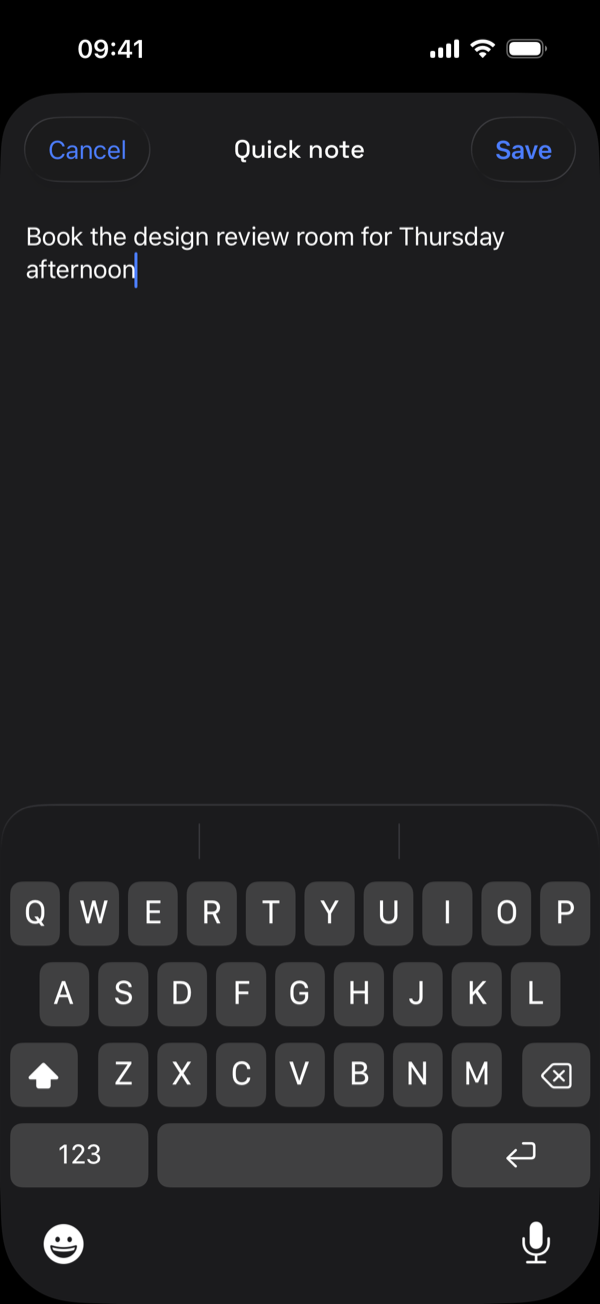
A quick note, typed and saved. It’s in your library before you pocket the phone. -
Every meeting becomes a structured note.
Open any capture and it’s already organized: a TL;DR, the action items, the commitments people made, and the topics discussed, with the source recording attached.
Light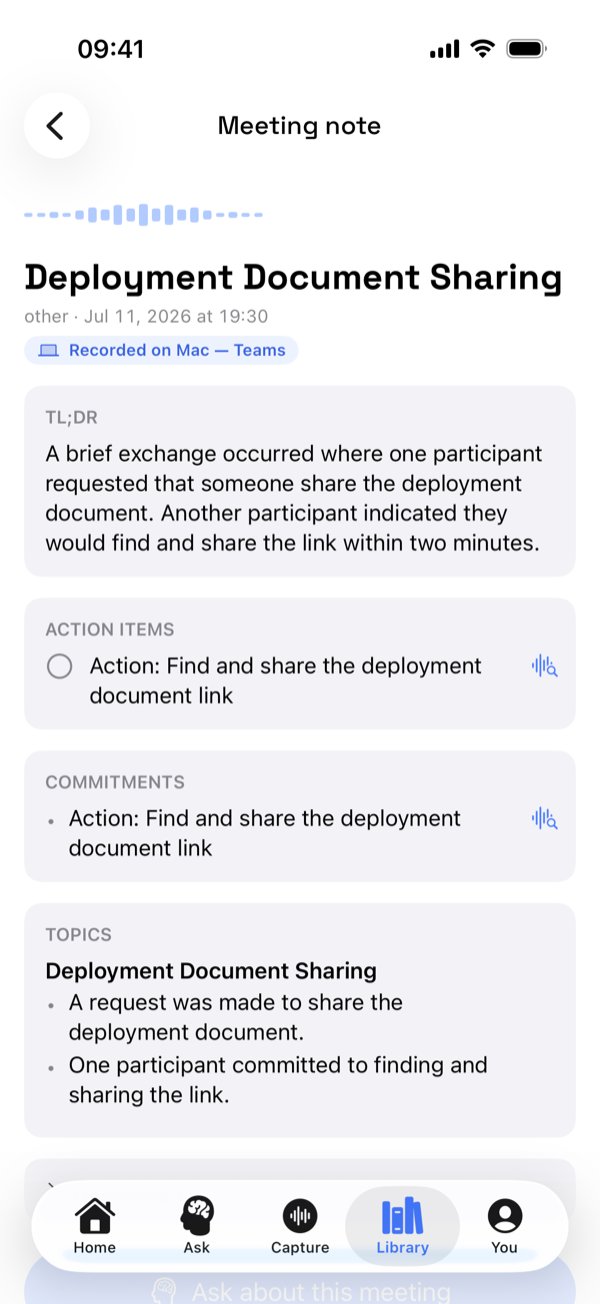 Dark
Dark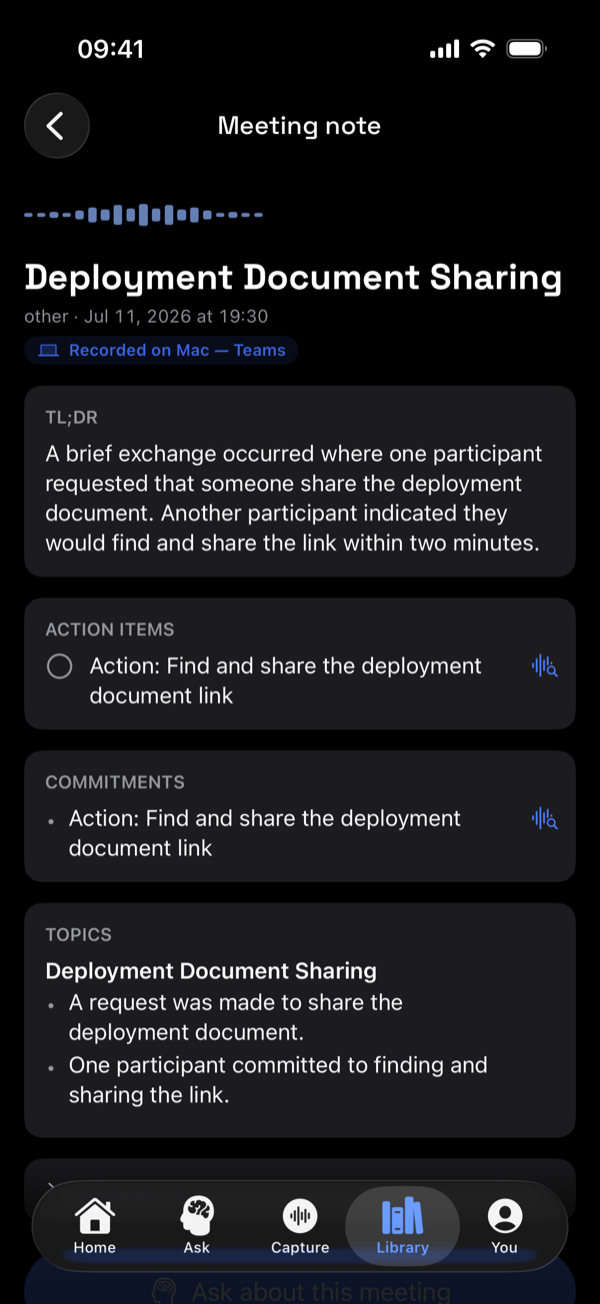
The note, already structured. Nothing to tidy up. -
Replay the exact moment it was said.
Tap the waveform next to any action item and hear the seconds of audio it came from. Not a paraphrase. The actual voice, at the actual moment.
Light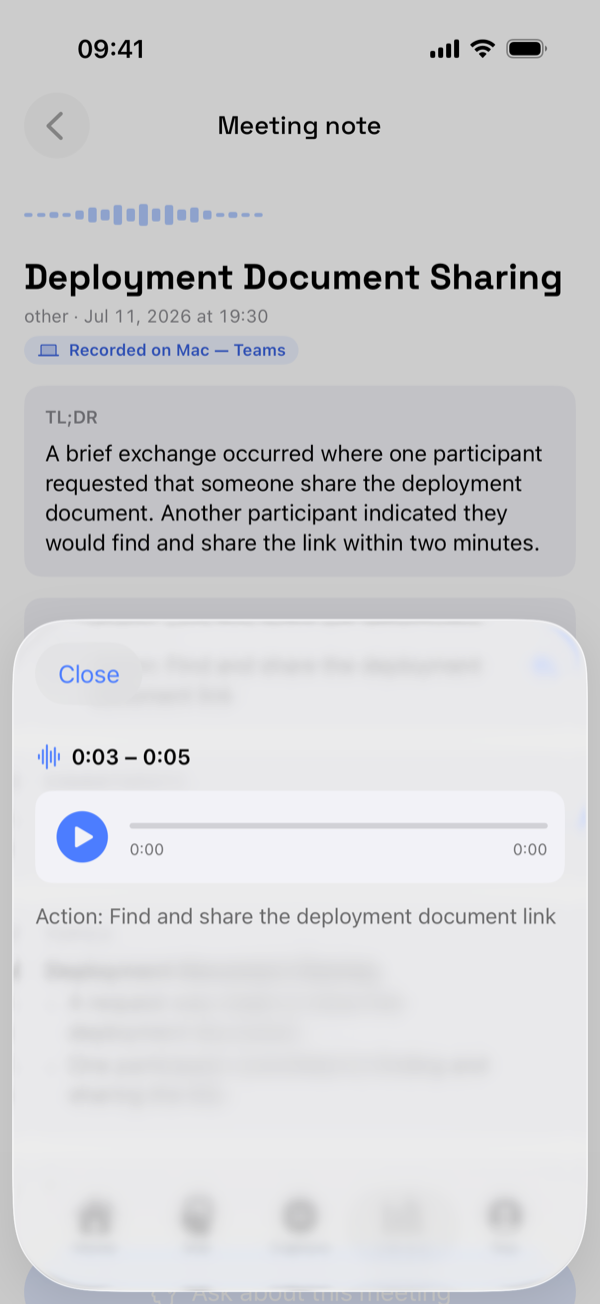 Dark
Dark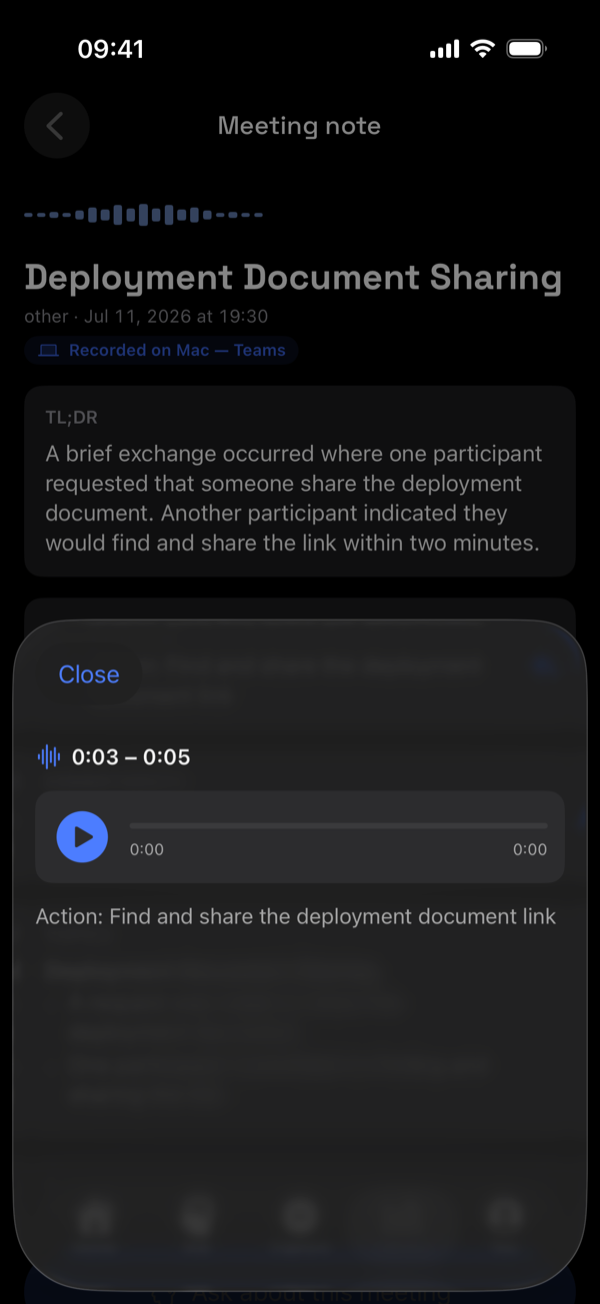
Moment replay: the receipt behind every note. -
Ask, and watch it work.
Ask a question and Paredra searches your meetings and notes live, showing each source it consults while the answer streams in.
Light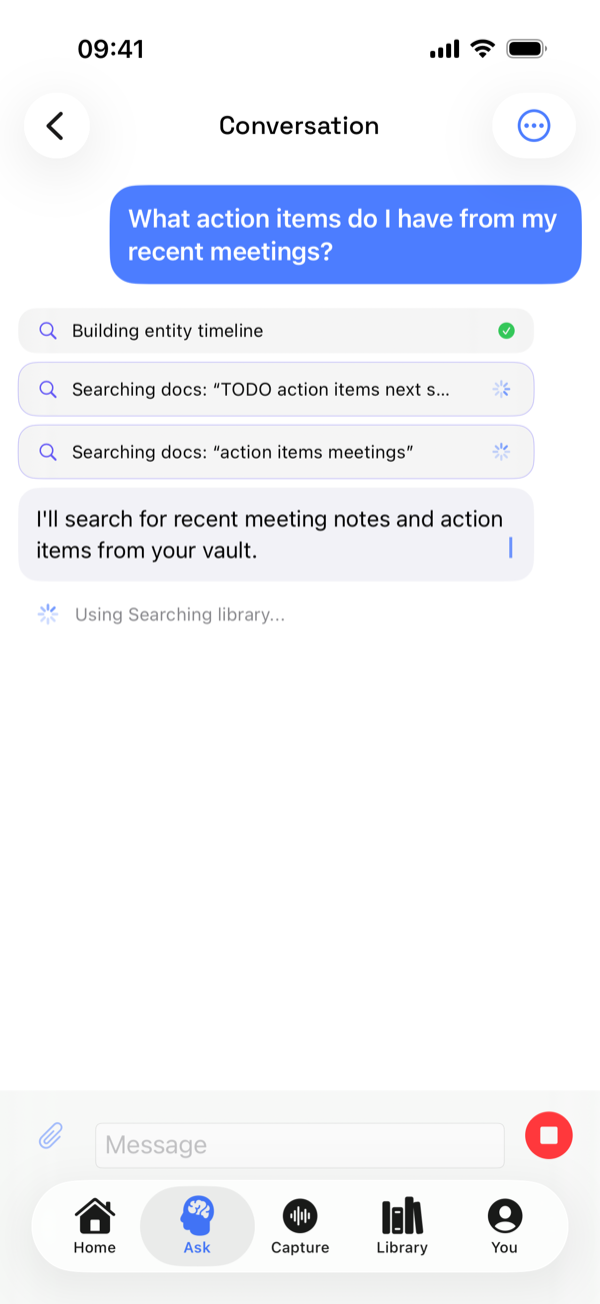 Dark
Dark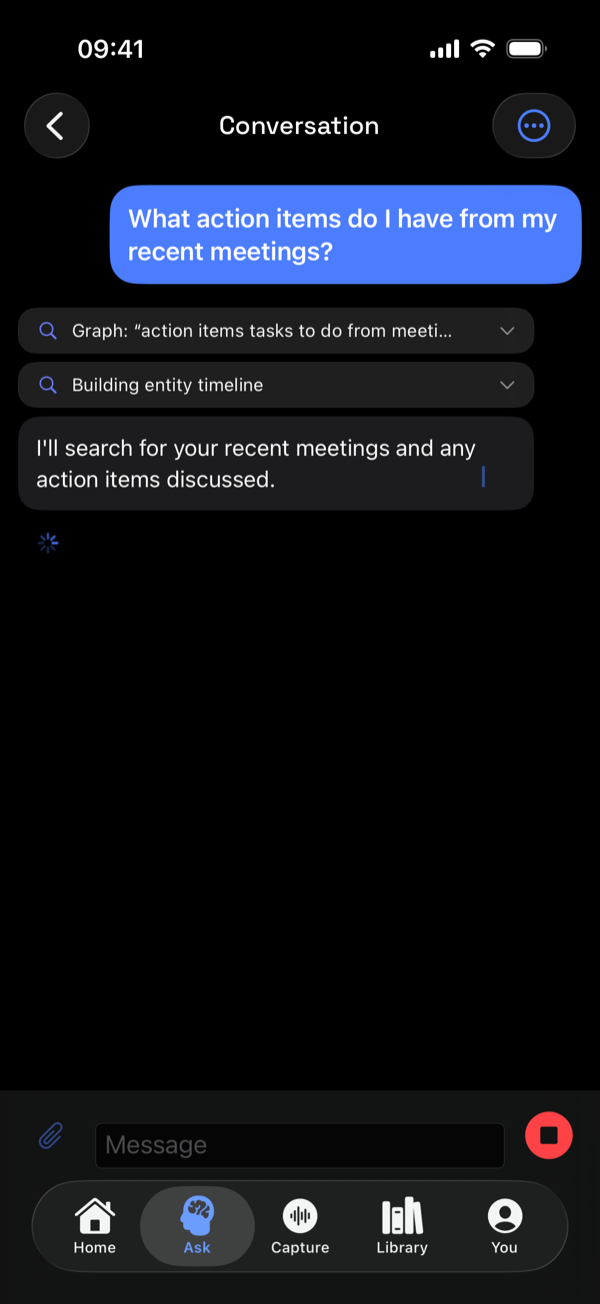
The assistant shows its work while it searches.
Paredra Sync for Windows
Quiet capture from the system tray.
On Windows, Paredra Sync lives in the notification area: a vault that syncs, a quick-capture window one hotkey away, and notes that flow into your knowledge automatically. The app follows the Windows “Choose your default app mode” setting, so its windows are shown below in both themes; the tray menu is drawn by Windows itself.
-
Find it in your tray.
The waveform icon sits next to your clock, always on and never in the way. It follows your system theme, light or dark.
Light Dark
Dark
The tray icon on a real Windows 11 taskbar, both system themes. -
Sign in once; the PC joins your memory.
Click the icon and the flyout shows exactly what’s on and what isn’t. Signed in, your vault folder syncs and watched folders flow in, with the last sync time always visible.
Light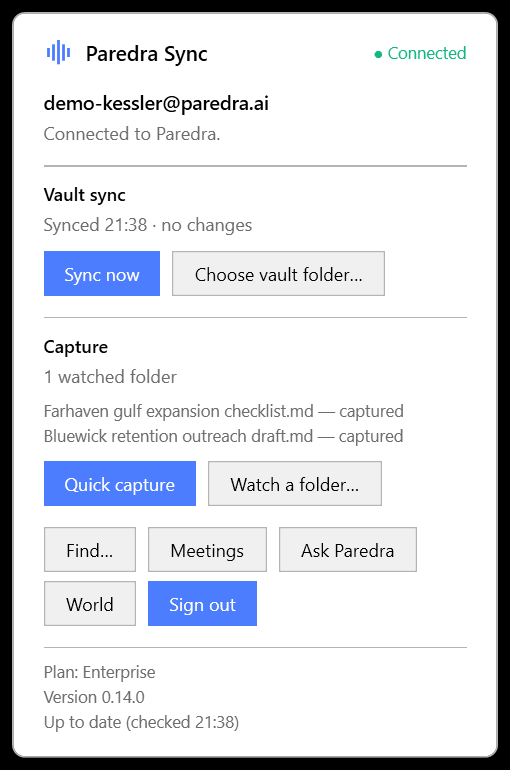 Dark
Dark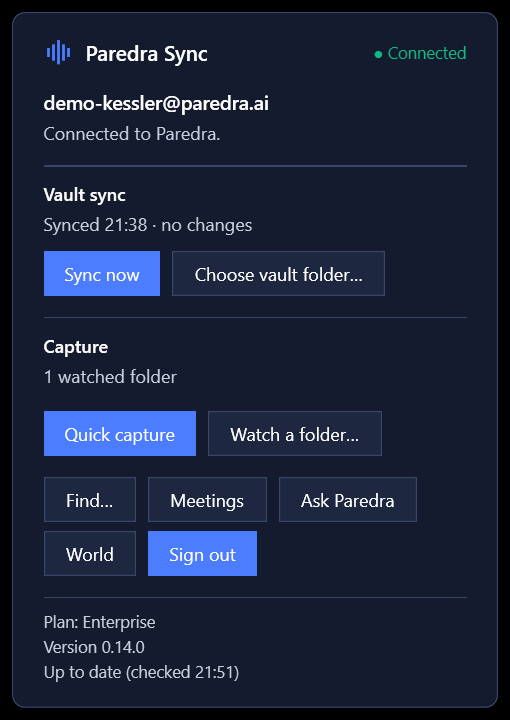
Connected: vault synced, notes flowing, version current. -
Capture the thought before it slips.
Press Win+Shift+P (the default hotkey, yours to change in settings) or choose Quick capture from the tray. Type the thought, hit Enter, and it’s in your library. If another app already owns the hotkey, the window says so plainly and the tray route always works. The green “captured” is a real upload, not a promise.
Light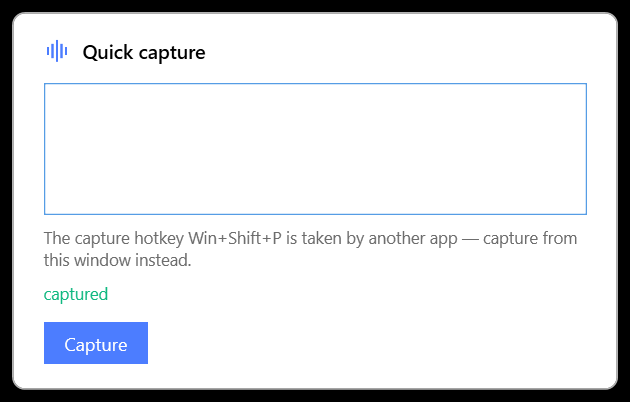 Dark
Dark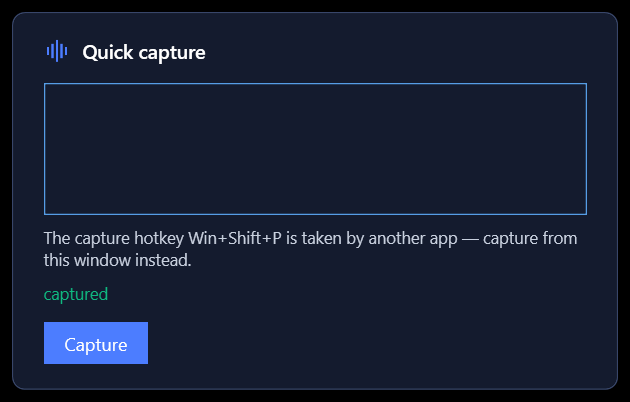
Captured, and confirmed against the live service: even when the hotkey is busy, the window tells you. -
Everything, one right-click away.
Sync now, choose your vault folder, watch a folder, check for updates, start with Windows. The whole agent is controllable from the tray menu.
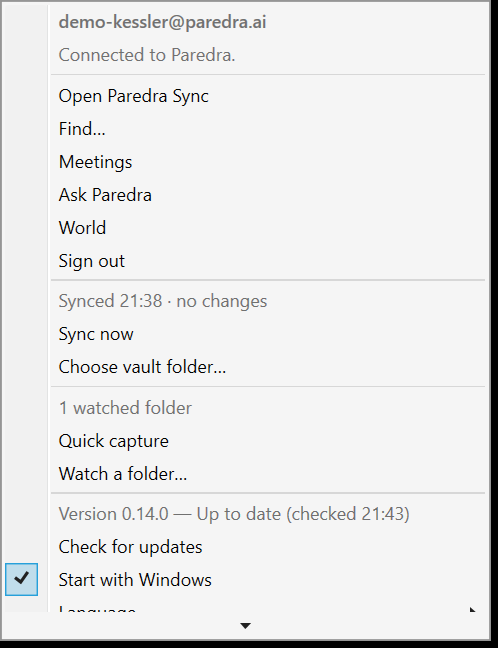
The power surface: every control in one menu. Windows draws this menu itself, so it keeps the system look, shown here in light.
Paredra on the web
The whole memory, in a browser.
app.paredra.ai is the full workbench: home, search across everything, the knowledge map, and your account. Any computer, nothing to install. Pick light or dark in Account and the whole app follows; every screen below shows both.
-
Home greets you with what’s new.
Your latest meeting notes with their action-item counts, and a capture button for whatever’s next. This is the same memory your Mac and iPhone feed.
Light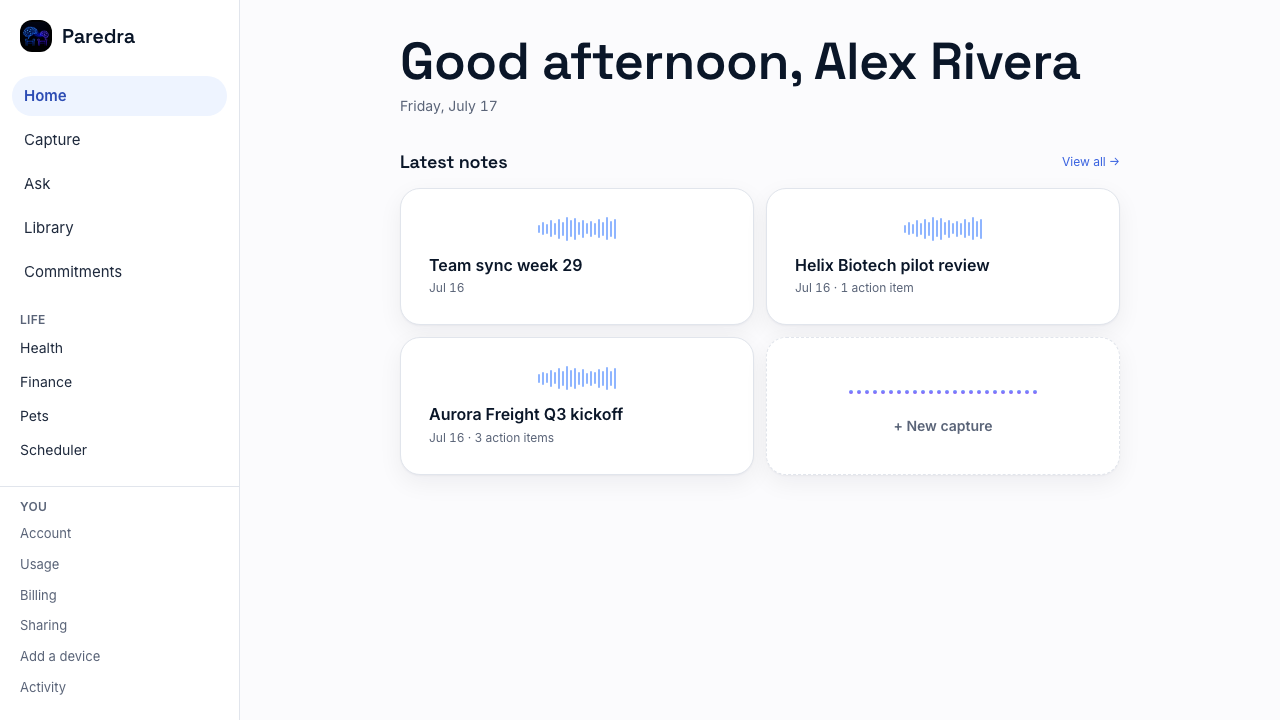 Dark
Dark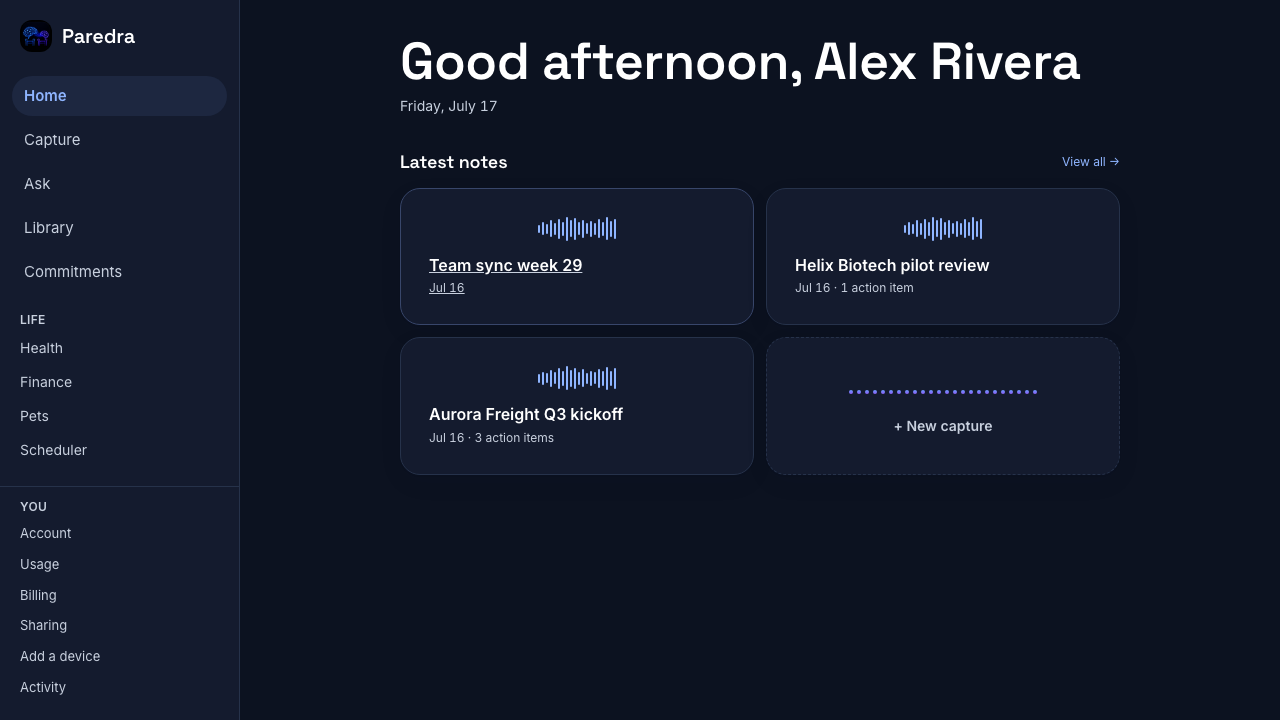
Home: your latest notes, one glance. -
Search everything you know.
One search box across every document, meeting, and note, filtered by source and category, with sensitivity labels on every result.
Light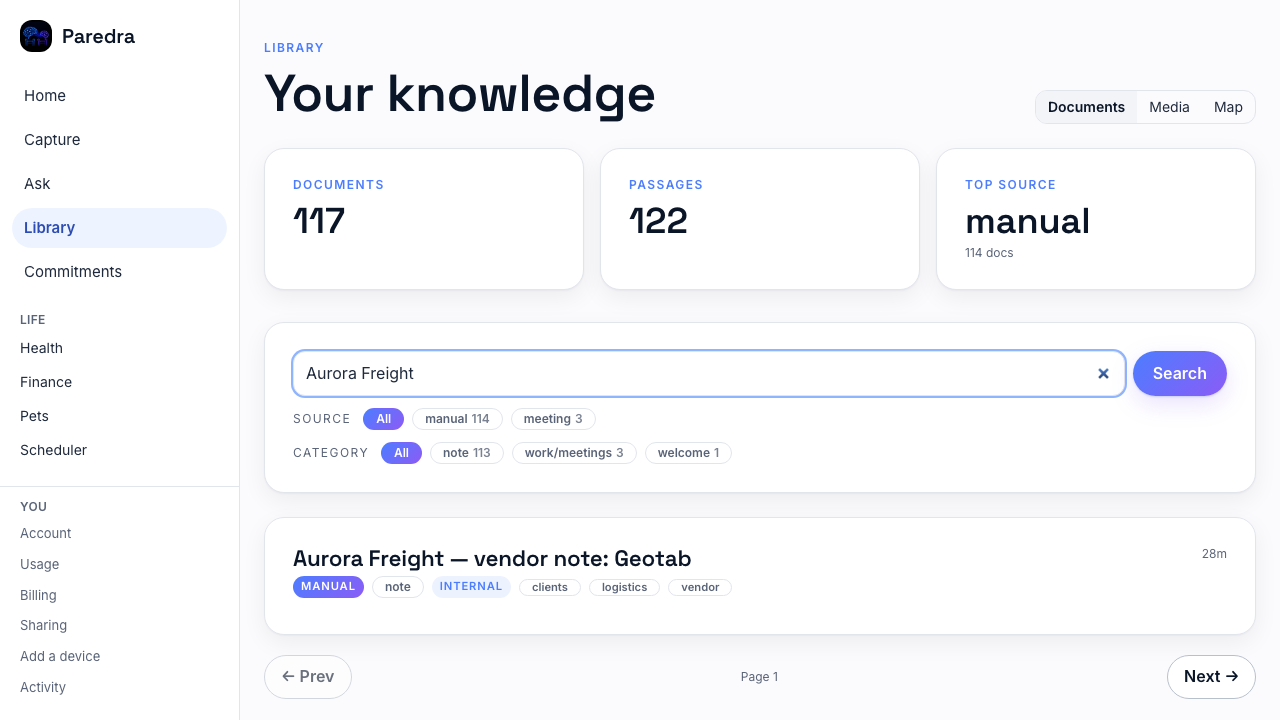 Dark
Dark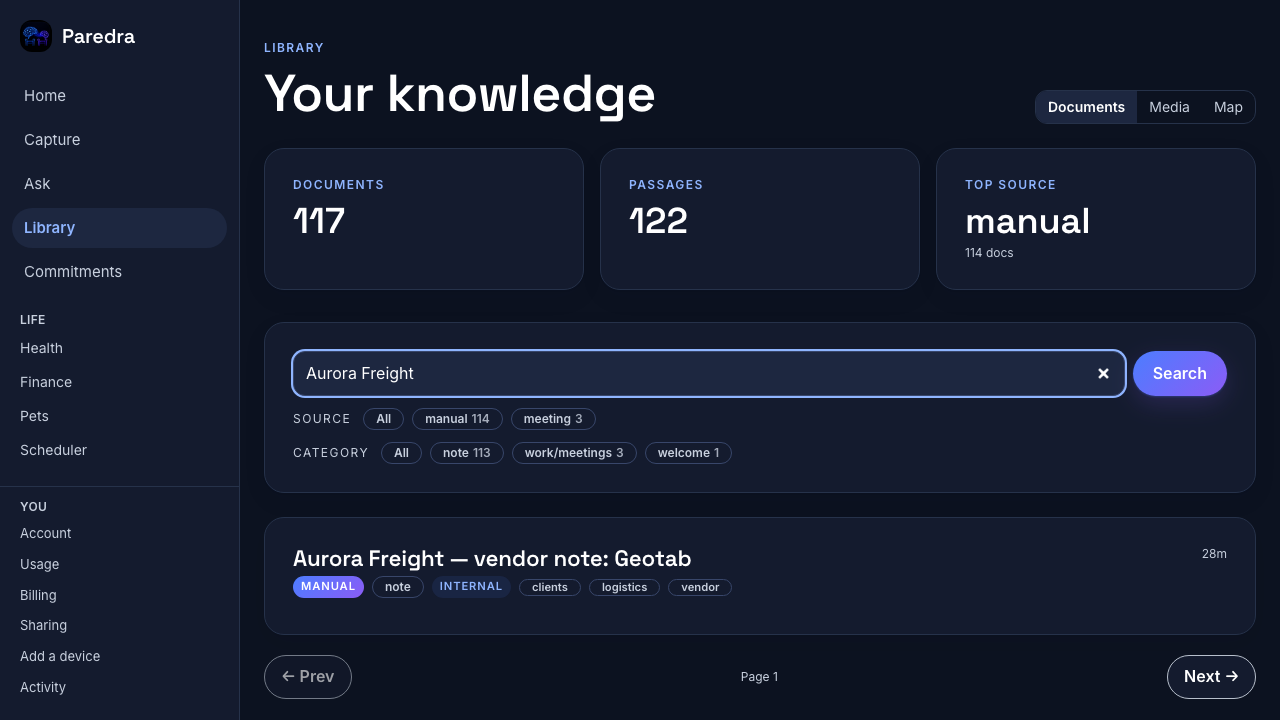
The library, searched: sources, categories, and scores. -
See your knowledge as a living map.
Every person, project, and topic is a node; every relationship a line. Filter by type, pull the threads, and see what connects to what.
Light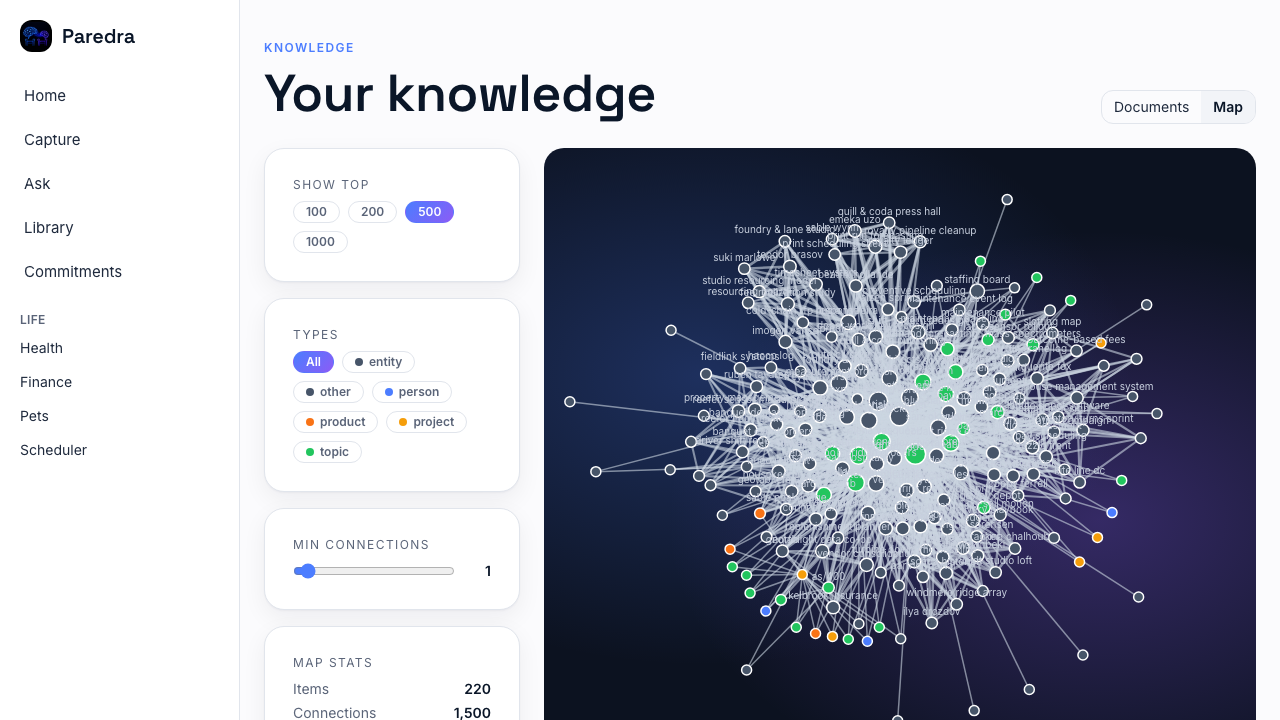 Dark
Dark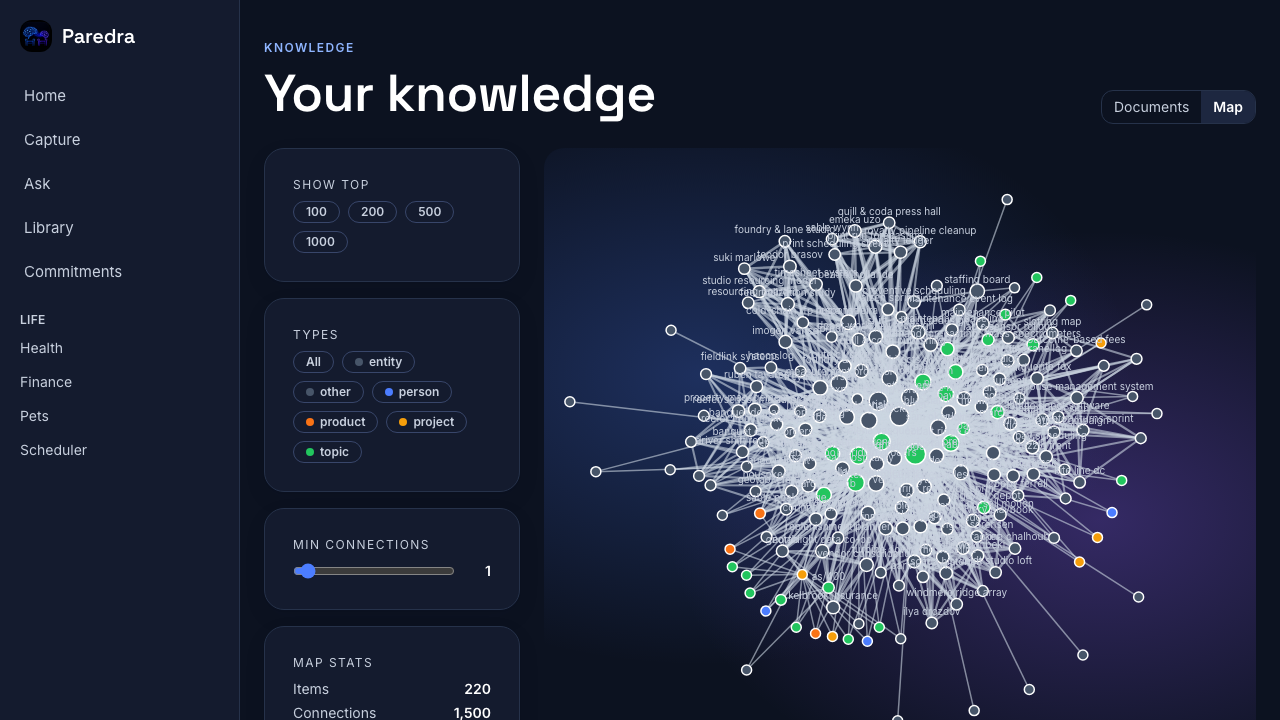
The map: your world, drawn from your own data. -
Meetings, activity, and account, all here.
Open any meeting for its structured note, watch every ingestion job in Activity, and manage language, theme, and your apps from Account. The web app speaks all five languages.
Light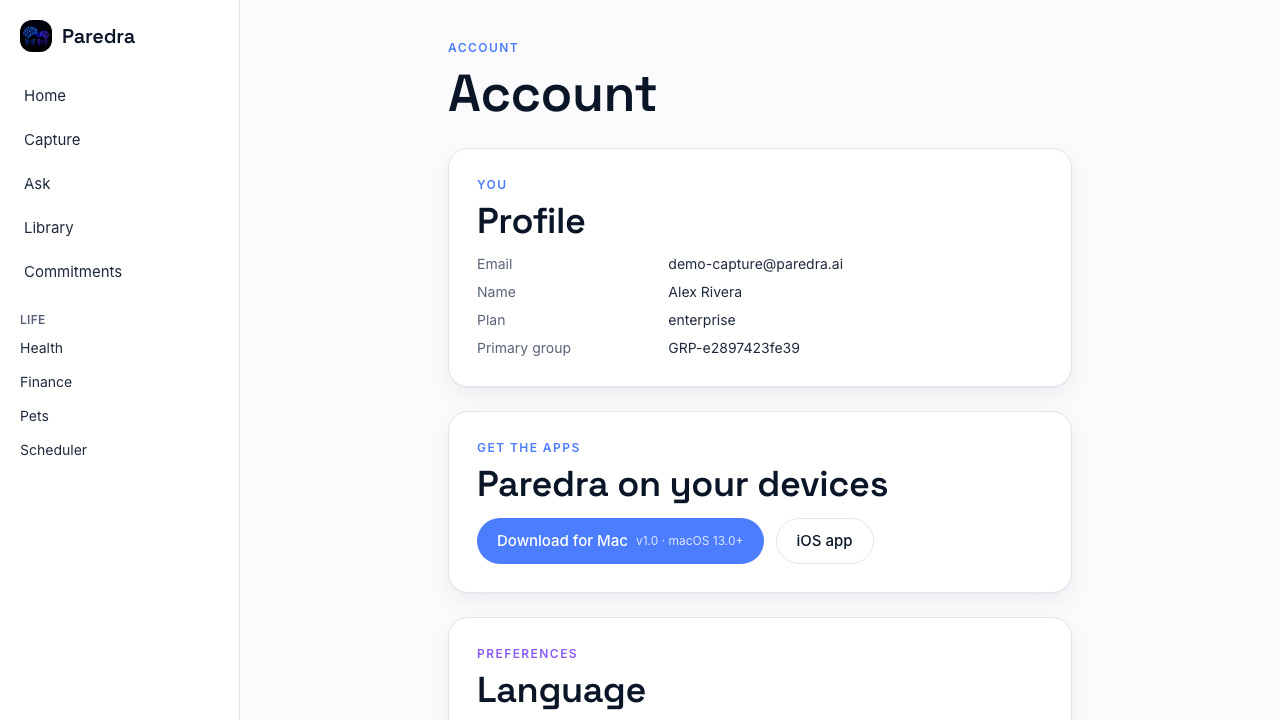 Dark
Dark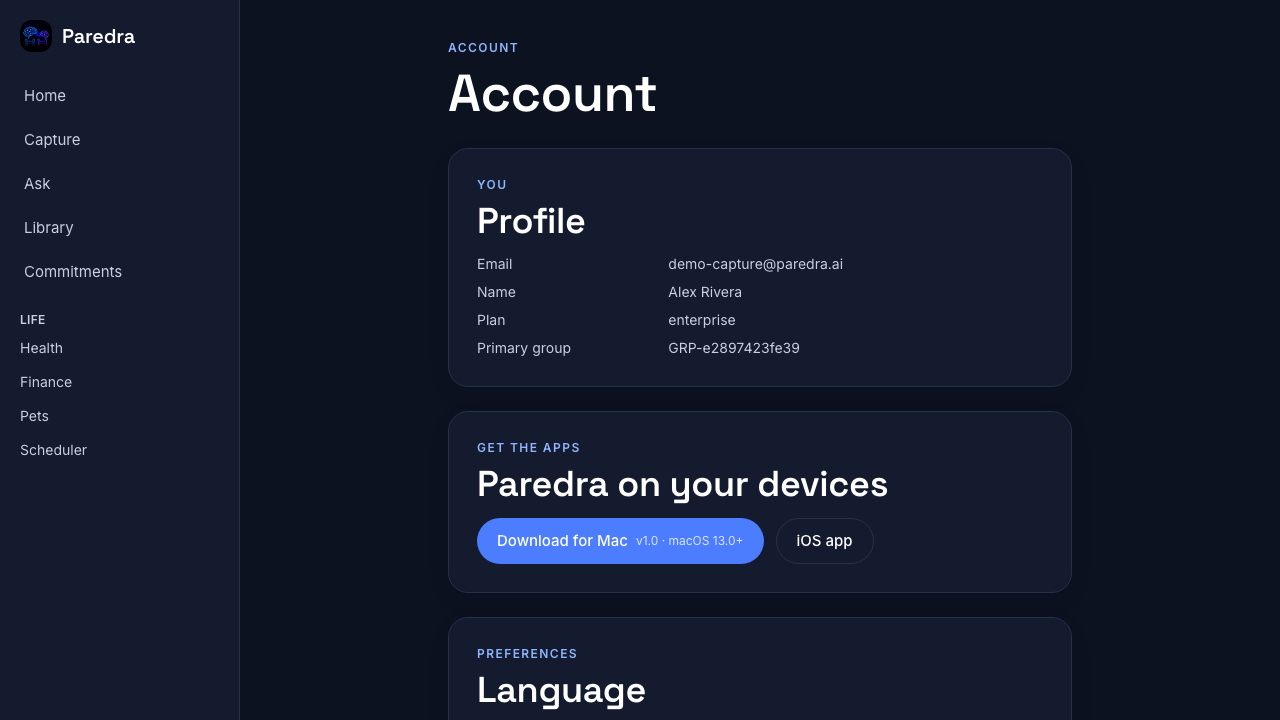
Account: profile, apps, language, and the theme switch itself.
Paredra for Android
The same memory, in your pocket.
Everything the iPhone app does, on Android.
Capture meetings and quick notes, search your knowledge, chat with citations, and browse the knowledge map. One account, the same graph, native on your phone.

Put Paredra beside you.
Start on the web in a minute, add the Mac and iPhone apps when you’re ready.
Try Paredra free